Using Excel's dynamic arrays to run scenarios
Excel has a newer class of functions called ‘dynamic arrays’. It helps to think of them as acting on a range of cells and also outputting a range of cells.

The attraction of dynamic arrays
Superficially there’s a potential attraction. You can create a formula in one cell that will populate the whole row in your model.

And the model can be set up to adapt i.e. stretch out to the right for a particular length of time – we’re going to have a look at how you can do that right now.
The example we created last time
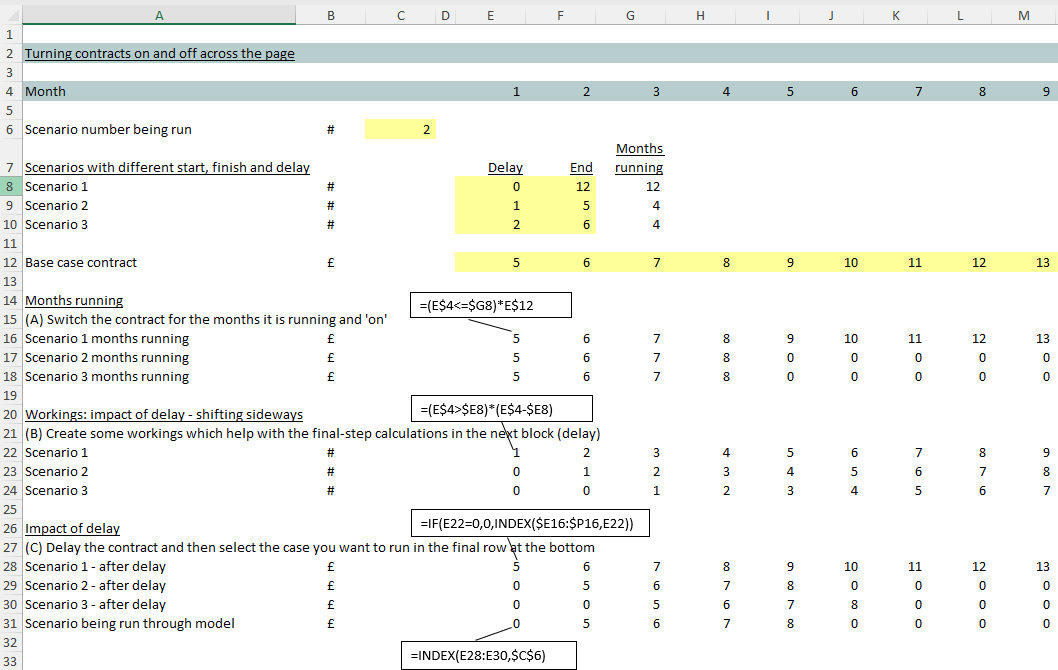
Here’s the example we created previously, where we layered up some scenarios around different contract start times and duration.
It uses conventional i.e. ‘normal’ formula construction where you create a formula and then fill that same formula out to the right.
The same example with dynamic arrays
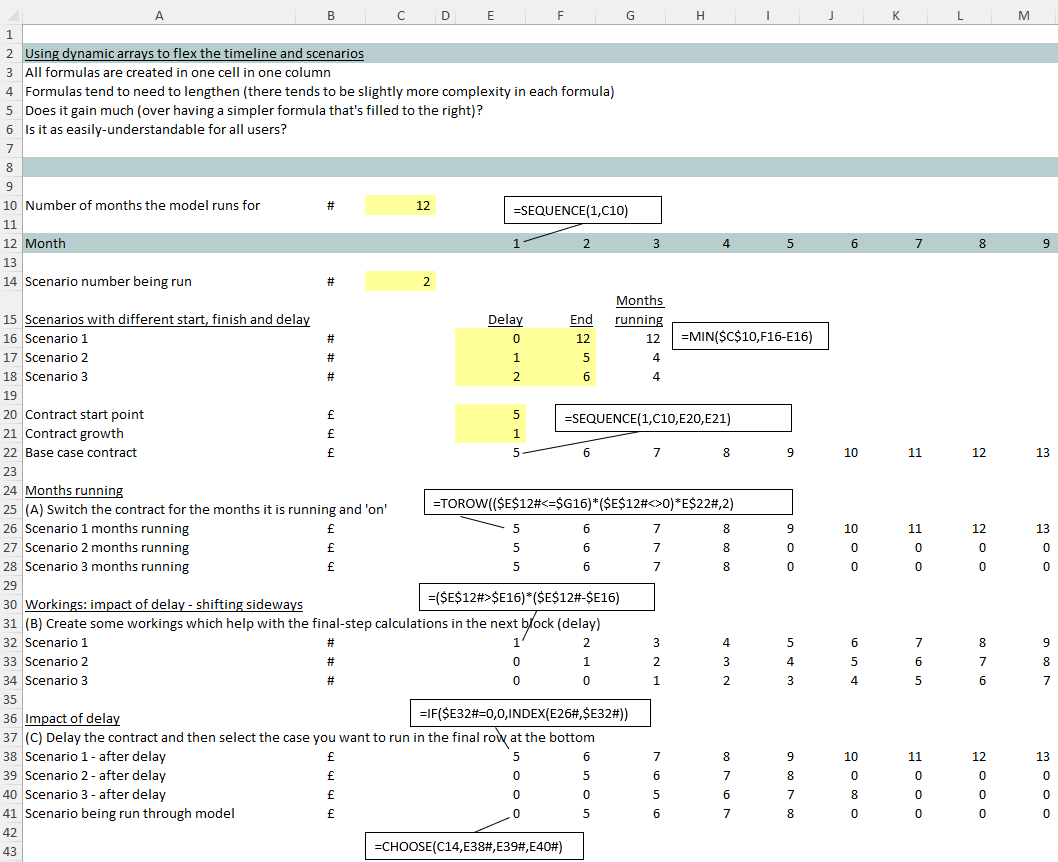
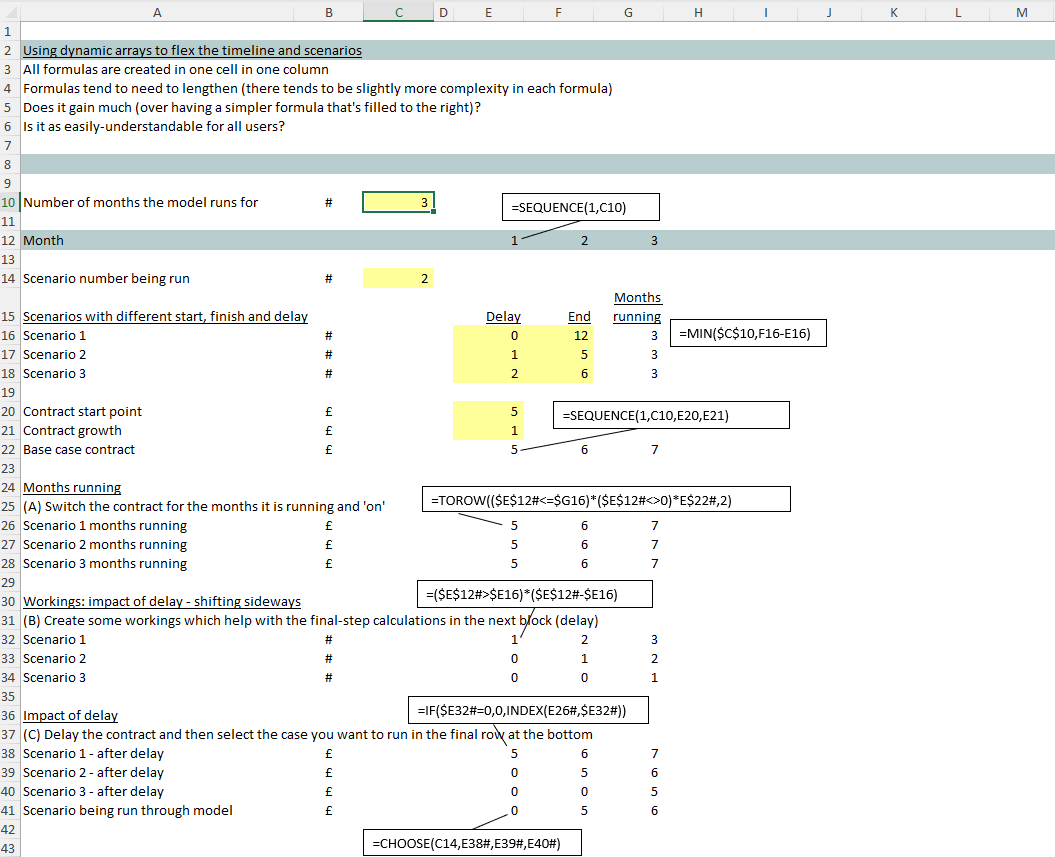
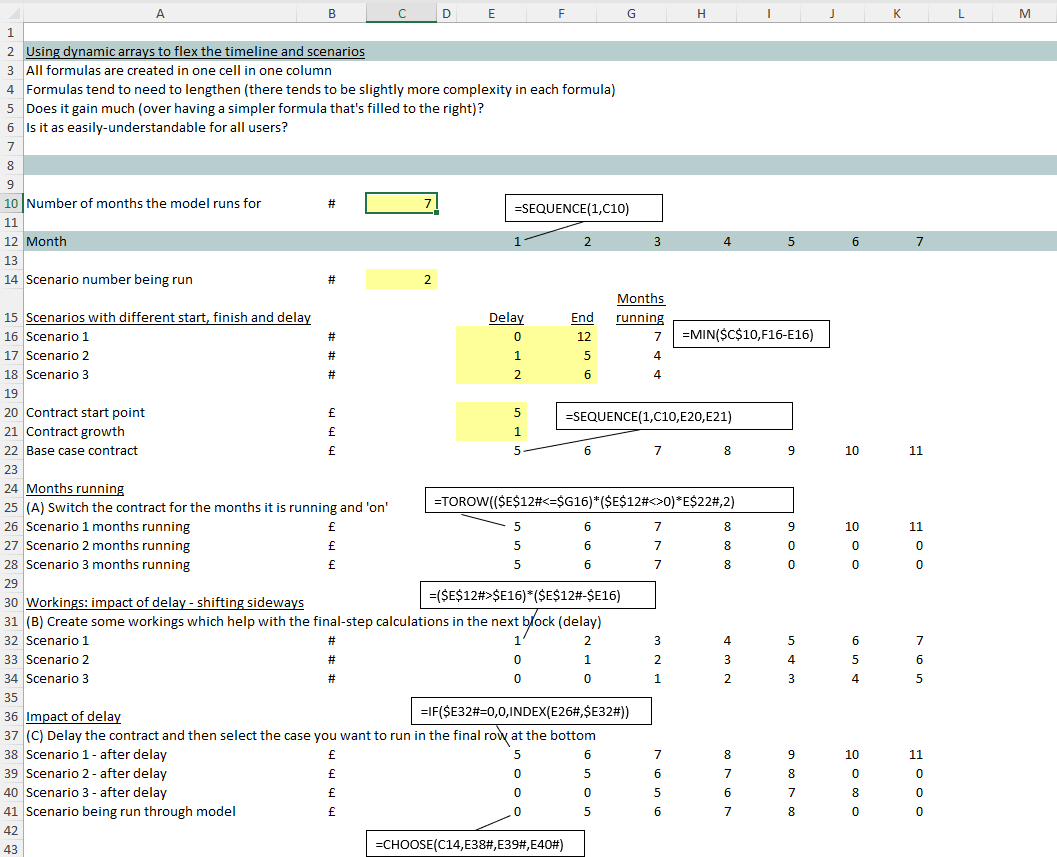
Here’s the same example but recast using dynamic arrays.
You can see it now adapts should we want to run the model out for different lengths of time.
Some doubts about constructing all of your work from dynamic arrays
Here are some reservations we have about the dynamic arrays version of the scenario set up:
- Sure we’ve managed to construct a whole model in one column, but each formula tends to become slightly longer/ more complex/ requires a bit more thought and checking. Is that a price worth paying (vs. keeping the formula the same and hitting “Ctrl R” to fill out to the right)?
- What have we really gained? All we really achieve is the flexing timeline – but is that really a good thing? For most models it might be simpler to set a max timeline and then switch off the periods when you want a shorter version
- Dynamic arrays might be less readily understood by users who are used to traditional formula construction. They’ve got the potential to confuse people and make the model more easily ‘breakable’.
That said, with dynamic arrays we have seen the introduction of some new functions (the ones that act on a set of cells, and output a set of cells) that it’s worth checking out. Notably: Unique, Sort, SortBy and Filter. If you have a chance to play with them you may find yourself growing to love those ones – in particular niche applications.
Simple is good
As always: simple is good. And although the dynamic arrays version of the ‘always-flexing’ timeline is superficially ‘neat’, you could argue that it adds a slight layer of complexity we could all do without.