Excel Sort, Sortby and Filter (with Dynamic Arrays)
We’ve been looking at Excel’s Dynamic Arrays and the extra help you get establishing a master list (e.g. of customer or supplier names) with them – via Unique.
Today we’re looking at some other functions (Sort, Sortby and Filter) which can also be super-handy – when you want your results (a sorted or filtered list) to ‘live update’ when source data updates.

Excel Sort
There are plenty of ways of sorting in Excel but this newer solution will refresh (when you paste new data over old) without being asked to. It’s really easy to get up and running with it. See the example below where the formula in cell A32 reads =SORT(A8:A25).
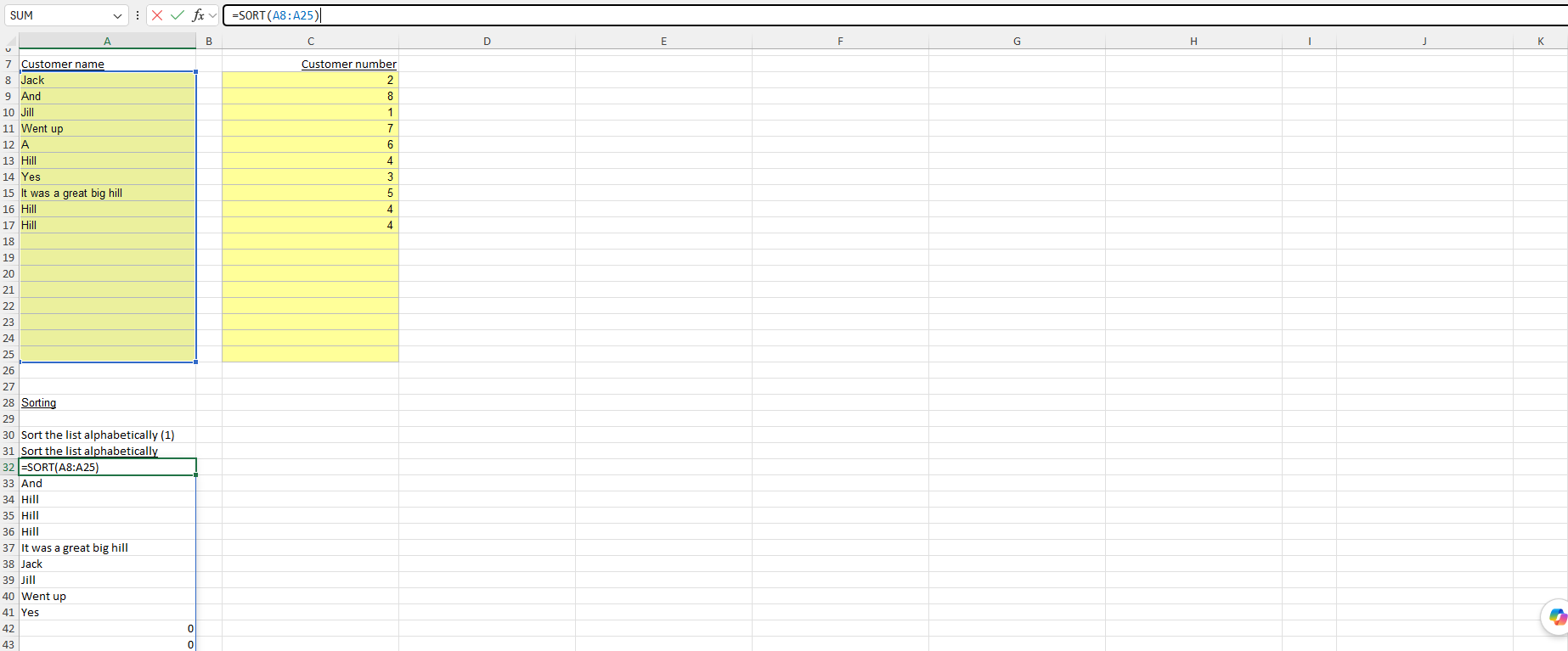
By default Sort will put a list into alphabetical order.
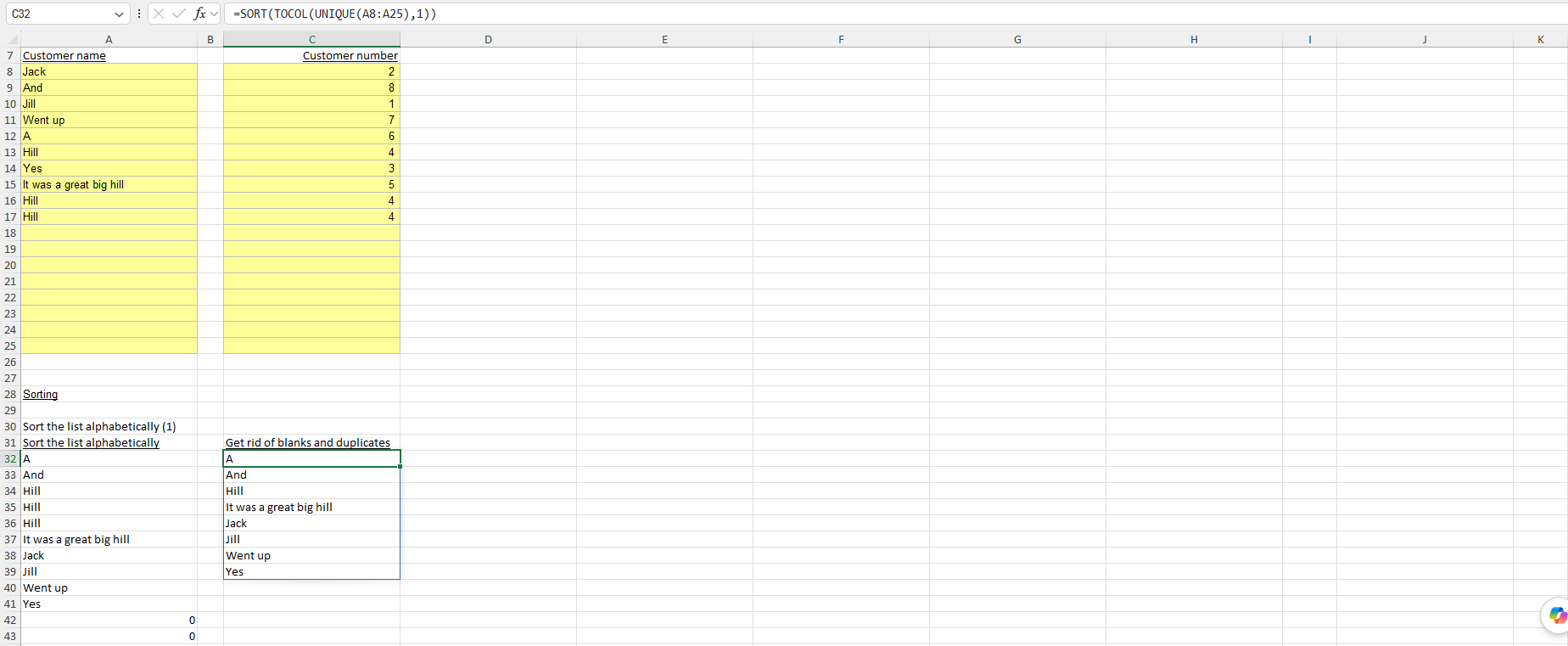
Notice duplicate entries, and surplus zeros arriving at the bottom of column A. You have some options to get rid of those as described when we first looked at Unique. What we’ve done in column C is wrap the Sort in Unique (to create a master list without duplicates) and a Tocol, just to get rid of the extra zeros. The formula that’s being used is =SORT(TOCOL(UNIQUE(A8:A25),1)).
Excel Sortby for ranking customers
The ability to order alphabetically with Sort is one thing. That’s somewhat useful. The ability to order by anything you like is much more useful. That’s what Sortby gives you.
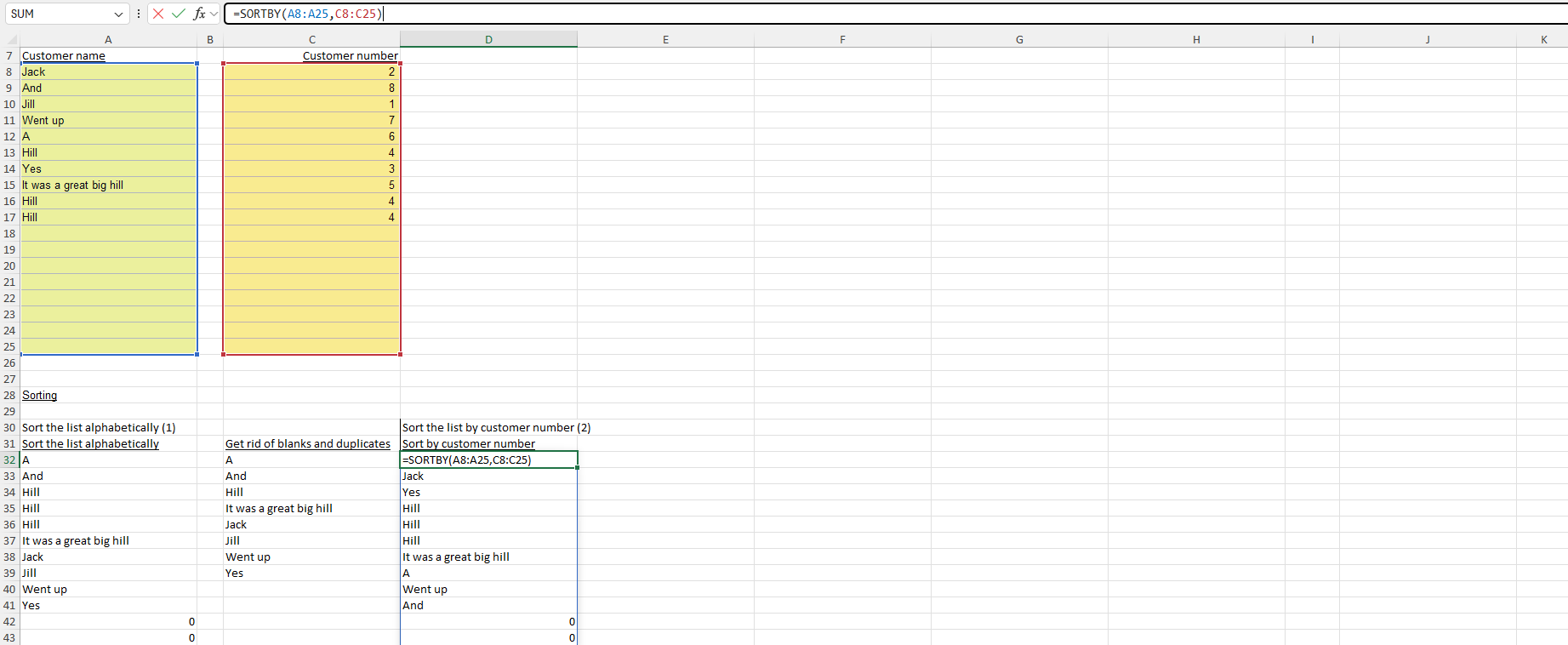
The yellow cells in column C contain some customer details. Column C could contain something like sales or other interesting customer information.
The first part (‘argument’ in Excel-speak) of the function in D32 points Sortby to the list you want to sort – column A in our case. Using the second argument of the function we then point Sortby to the details in column C. Here in cell D32 you can see Sortby doing its job really well =SORTBY(A8:A25,C8:C25).
Here you can see a version (you must be getting an expert at this by now?) where we’ve cleaned up duplicate entries and gotten rid of extra zeros =TOCOL(UNIQUE((SORTBY(A8:A25,C8:C25))),1).
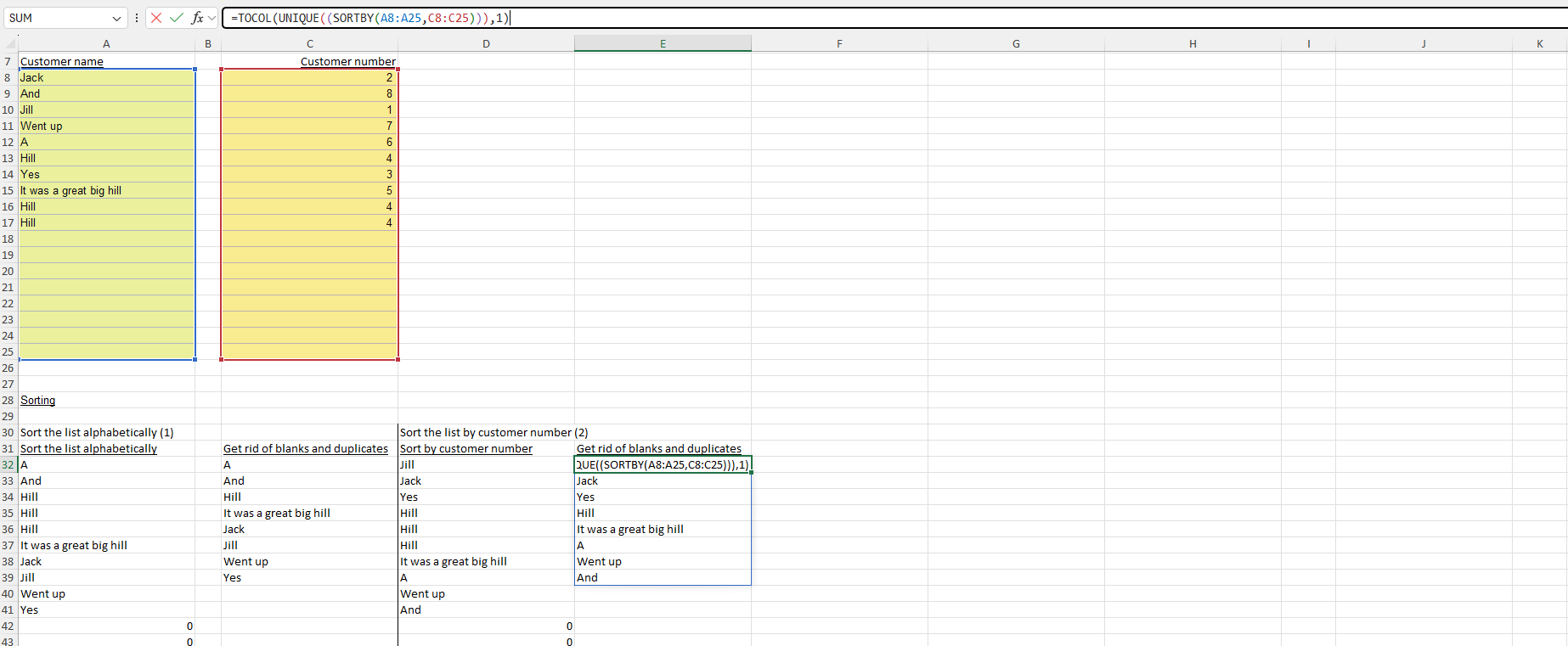
It’s getting a bit nested and ugly
There’s a fair bit going on in that formula in the screenshot above – three things in fact. You’ve got the Sorting, then you’re applying Unique, and then ToCol to eliminate zeros. That’s quite a lot in one place and it’s probably at the point where we might think to break it into a few steps, just to make it a bit clearer to someone new to the spreadsheet who is seeing these (not everyday) functions perhaps for the first time. It’s easy to break the columns out and step through the calculation if you wish.
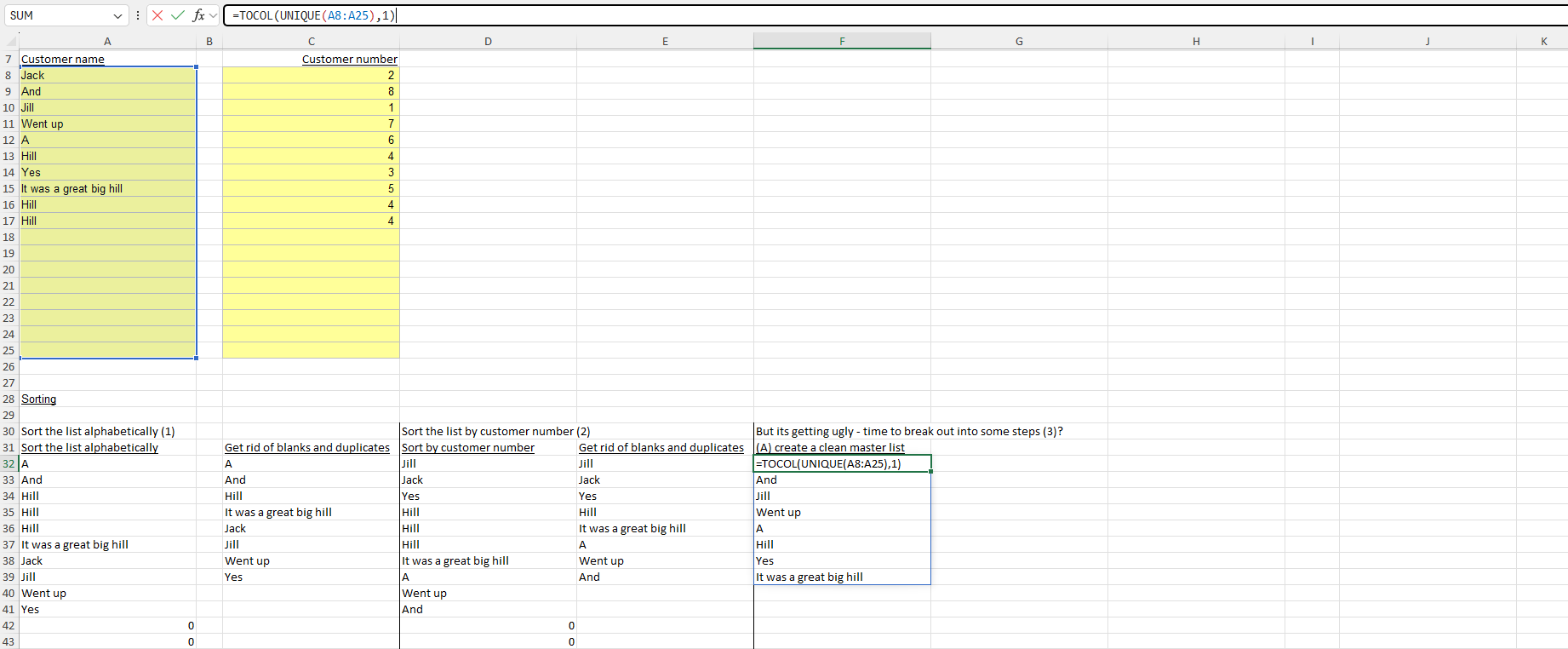
In column F we’ve taken the step of first creating the master list, with no zeros =TOCOL(UNIQUE(A8:A25),1).
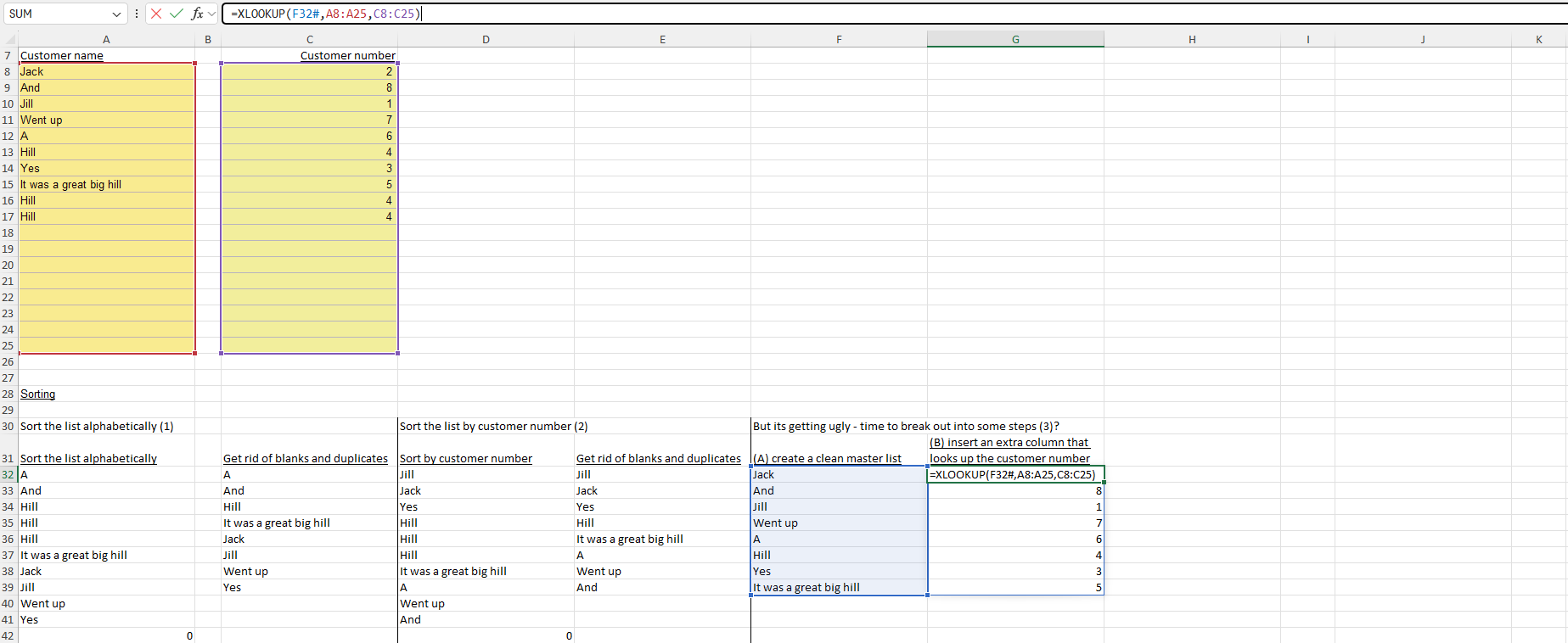
In column G you can see the customer number placed there just for reference, so we can keep track of that =XLOOKUP(F32#,A8:A25,C8:C25).
Then in Column H you can see that the data gets sorted =SORTBY(F32:F39,G32:G39).
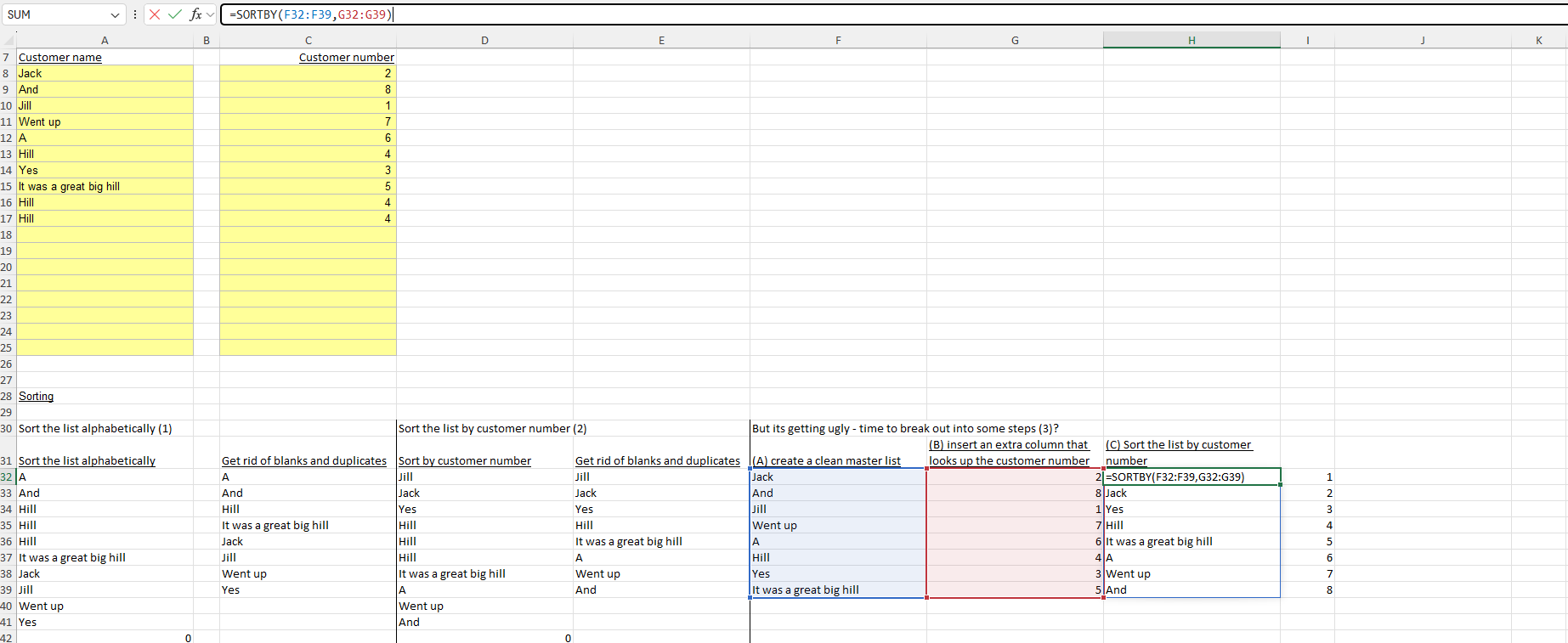
In Column I you can see the customer number arriving as expected – which becomes a check that we really have got this data sorted in the order we want.
Columns and rows come cheap in Excel. You get lots of them for free. Perhaps get into the habit of making use of a few more of them when you feel calculations are starting to get a bit long – so someone else can see what happens as they move across or down the spreadsheet?
Excel Filter for grouping customers
If you wanted to group (create a ‘cohort’ of) customers, you could use Filter to set out the 10 largest customers for example. Or the customers that account for 80% of business.
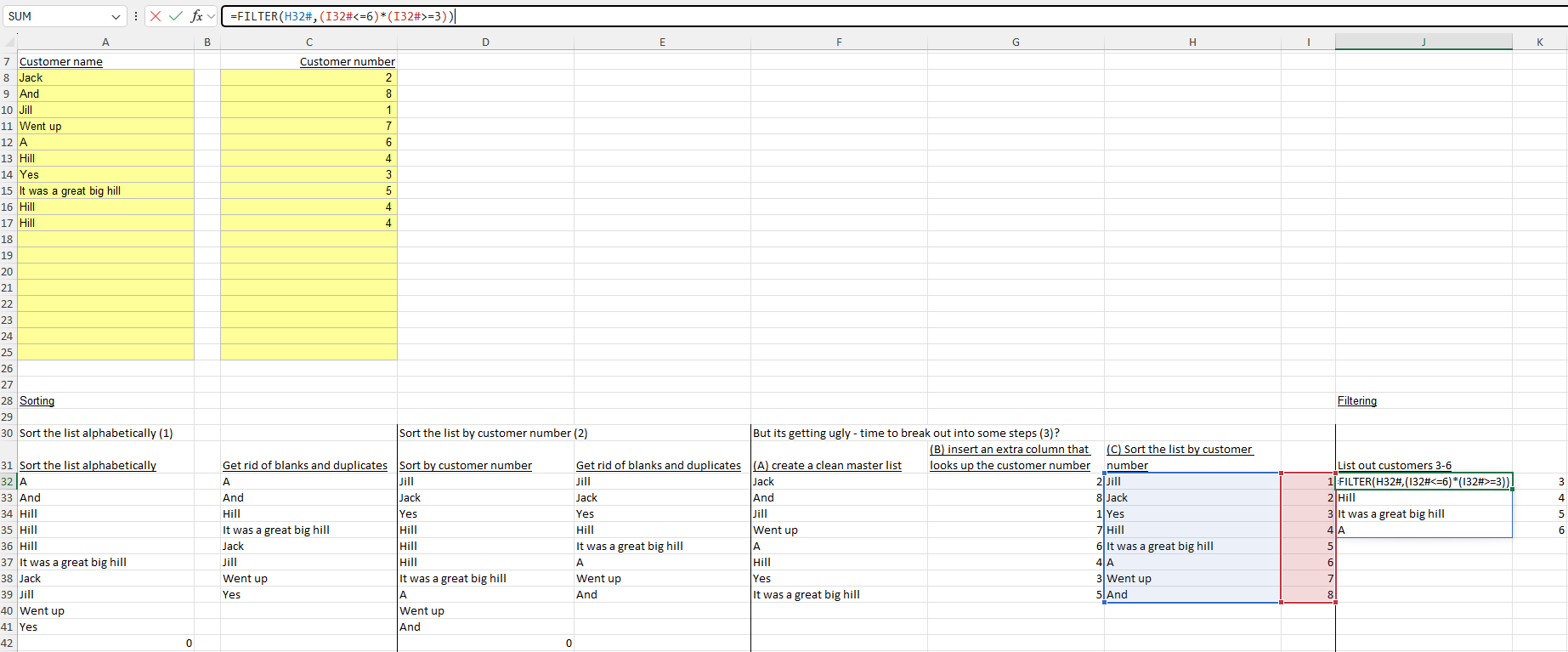
In this example (just to show how the function works) we’ve used Filter to list out the customers that sit in positions 3 through 6 on our list =FILTER(H32#,(I32#<=6)*(I32#>=3)).
The extra powers you get with Excel Dynamic Arrays
Excel Dynamic Arrays take a bit of getting your head around (they work on a range of cells, and you’ll often see them outputting a range of cells). They tend to generate #SPILL! errors when their outputs ‘bump’ into other workings – but you just have to insert more space for them to do their work.
There’s a benenfit to them though. At the final stages of a data-crunching challenge Dynamic Arrays come pre-loaded with the ability to tap into some fantastic powers. If you wanted to do this (sorting, filtering) in a way that would continuously refresh in ‘old’ Excel it would have been much harder.