Excel Unique for a master list
Recently we were looking at Excel’s ‘Dynamic Array’ functions, and some of the extra powers they give us. We mentioned Unique, Sort (and Sortby), as well as Filter – that arrived about the same time as Dynamic Arrays (DAs) arrived in Excel.
Let’s take a look at Unique. It’s great for removing duplicates and establishing a master list (imagine a list of suppliers or customers) ahead of doing something with that list like sorting it.

Unique for establishing a master list e.g of customers or suppliers
Here’s our master list. It’s got some duplicates (at lines 20, 23, 24) which, in a much longer list, wouldn’t be quite so obvious.
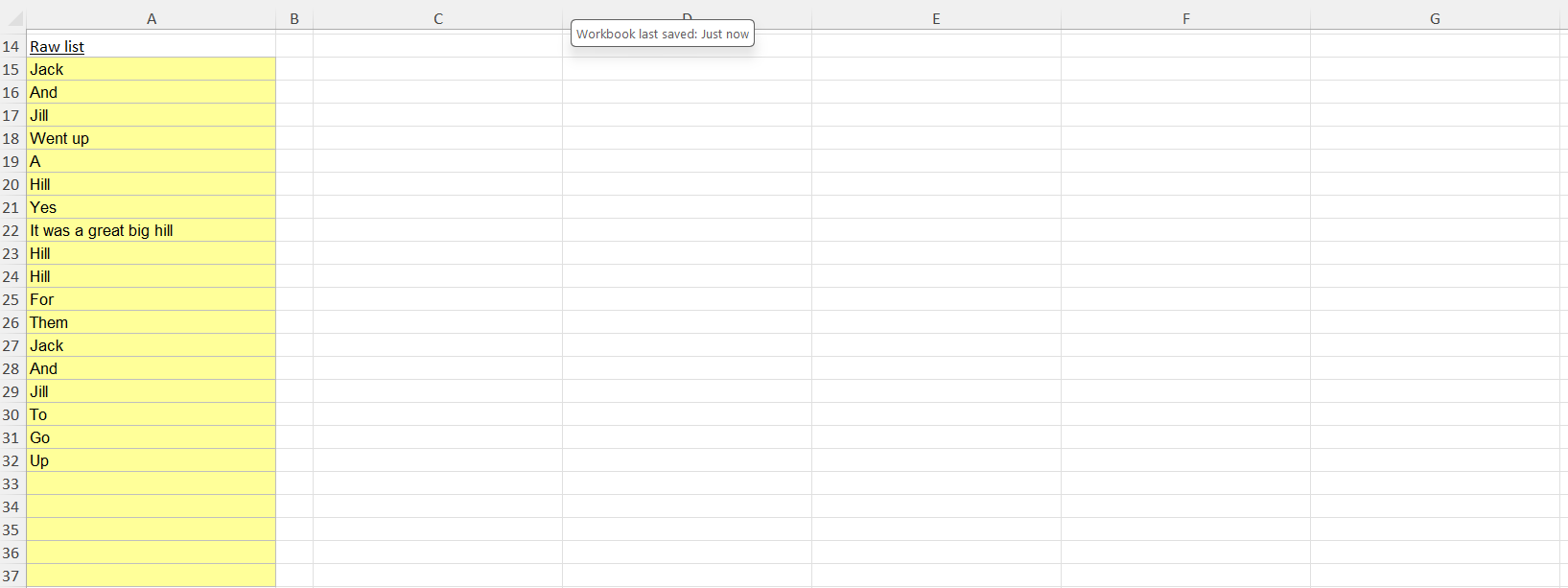
Unique is great. Doing this without Unique (which is able to adapt as the yellow entries in the master list change) was much more painful in old Excel. All we need to do is point Unique to the master list and it does its job.
If you experiment with what’s on the master list you’ll notice Unique’s output instantly adapts, with the final list resizing e.g. as you introduce brand new entries into the yellow cells.
Getting rid of #SPILL! errors
Unhelpful #SPILL! errors are covered here.
As the list expands and ‘bumps’ into something else (row 54) the #SPILL! error tells you that Excel hasn’t got room to fit everything in.
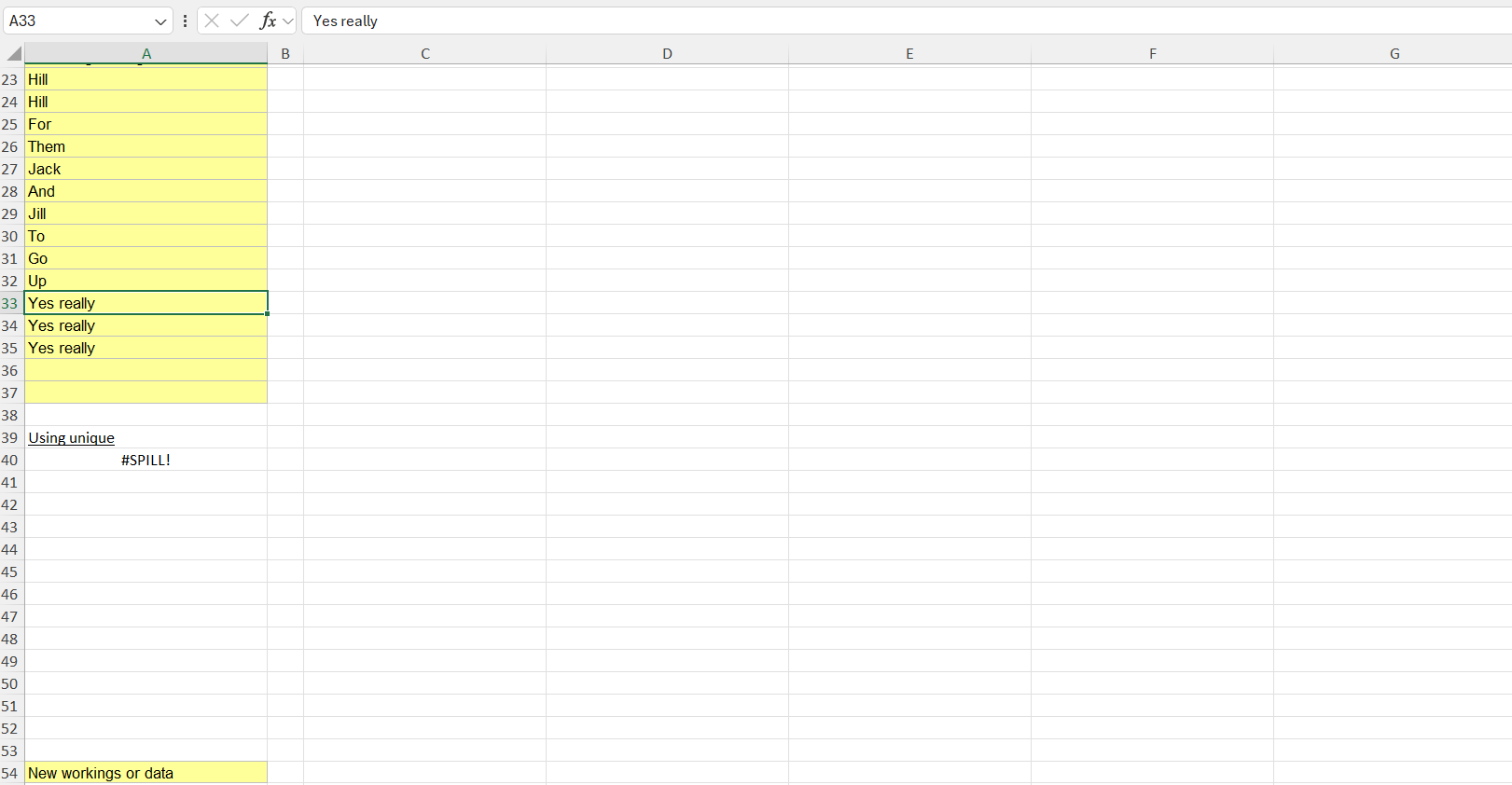
It’s an easy fix. All you have to do is insert a few more rows in or about say row 46 and the error will go away.
You have to keep an eye on #SPILL! errors though, because they can creep into your work really quickly (if you become fond of DAs).
Getting rid of zero entries
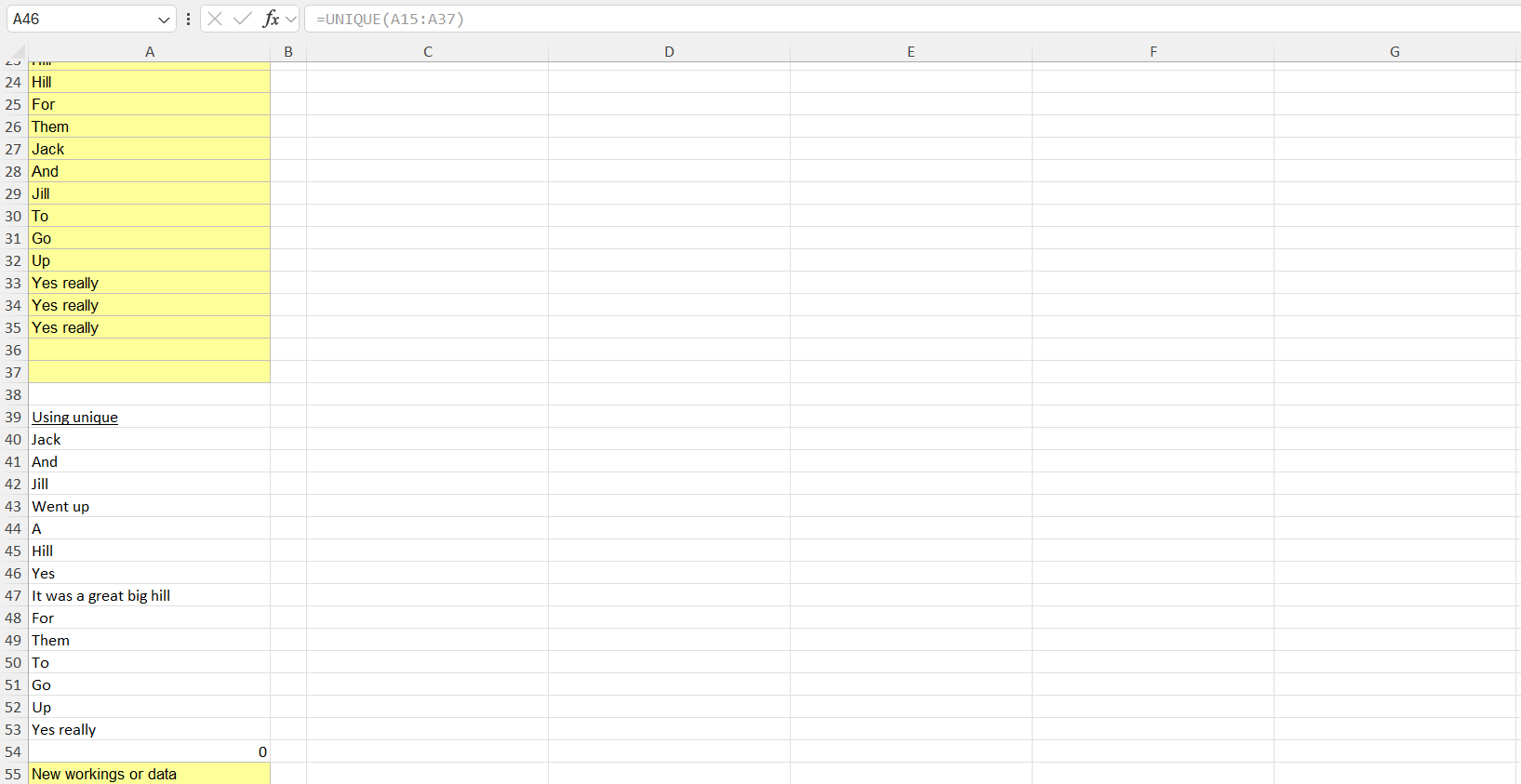
Notice our ‘customer’ master list has arrived with a customer zero at the bottom in A54. That’s because Excel is seeing the blank yellow cells on the master list and amalgamating them together as customer zero. That’s not usually helpful. If we’re going to do something interesting with the list (like sort it or amalgamate parts of it, we don’t really want a new customer zero arriving on the list).
Here’s three ways you can get rid of the annoying zero on the list. They all do the job of getting rid of customer zero:
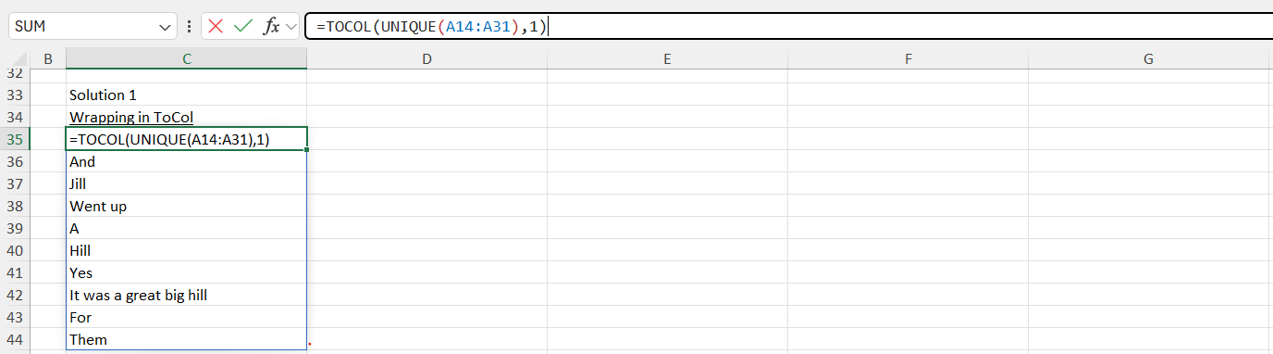
1) Excel’s newer Tocol function will take a block of data and rearrange it into one long column. It comes pre-packaged with a bit of extra functionality that helps get rid of the zeros.
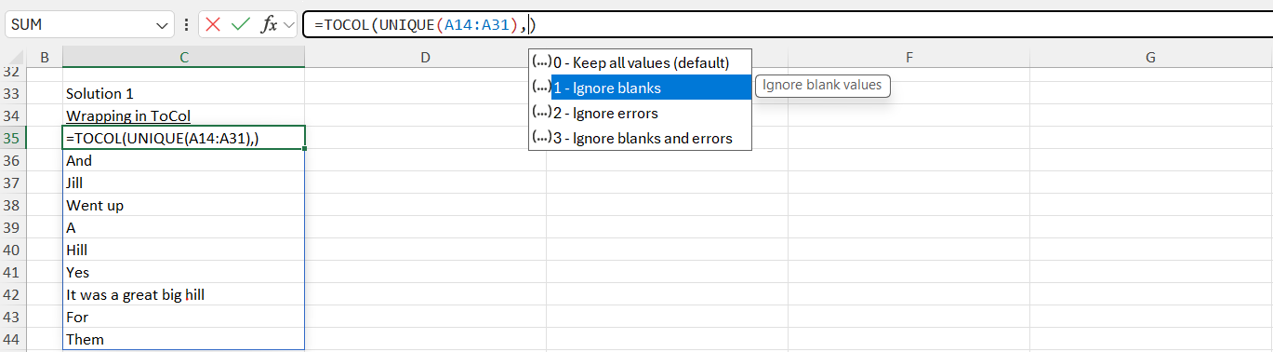
Enter a value of 1 at the back of your Tocol function, and the stray zeroes will be banished.
2) Filter (of which we’ll hear more about in another article shortly) can also be helpful. We can use it to focus in on the non-zero values only.
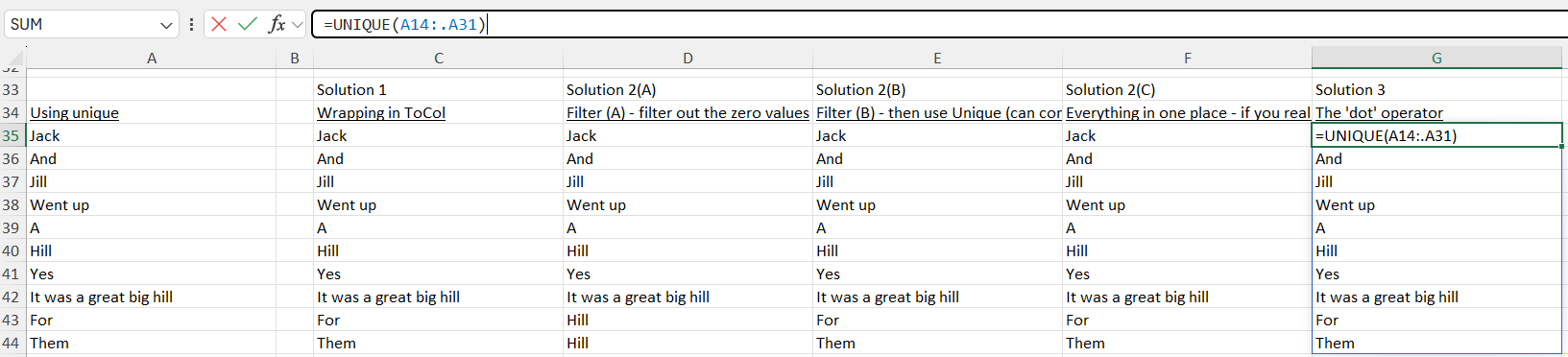
3) This last solution seems pretty cool – at first. If you get out your magnifying glass and focus it on the formula bar in the screenshot below, you’ll see an extra ‘dot’ operator placed after the colon between A14 and A31. That dot operator tells Excel to get rid of the zeros.
It feels pretty neat because it’s so small and perhaps even elegant. The ‘problem’ with it is it’s tiny, not obvious, and easy for someone new to the spreadsheet to miss. That creates an argument for sticking to one of the other two more obvious solutions above. Those tell someone what’s going on without them having to spot it. If you’re interested, you can read more about dot operators here:
https://share.google/aimode/w43gqrp2K3eFEwoeY
A final word on Unique
Unique is great! The day you get to use it it feels like you’ve just had a free lunch (especially if you ever had to do this before Unique was invented).
Watch out for the #SPILL! errors though, and the annoying extra zeros you likely want to get rid of – but you’ve got quick solutions above for those!