Excel's dynamic array functions
Dynamic Array functions are likely not the first thing you come to when you’re coming up the financial modelling curve.
They deserve a bit of an explanation.

The contrast with how you do things ‘normally’
If you’re working in Excel normally, you tend to wire one cell to another, filling rows down and columns across.
Here’s an example where we’re (imagine) trying to work out different commissions due on different amounts. The total commission is 49 here in cell D22.
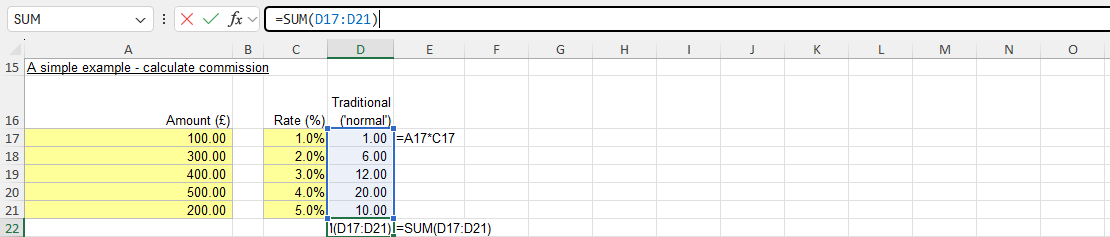
In column D we’re wiring amount to percentage. The formula in D17 can be filled down. Add everything up and we have the answer in D22.
That’s probably the most straight forward way of cracking this nut. Everyone can see the inputs, the steps, and how we get to the answer.
(Of course, if you’ve been around Excel a little while, you’ll know there is a function that can get the commission calculation straight away – and you can see that ‘Sumproduct’ at work in cell D23).
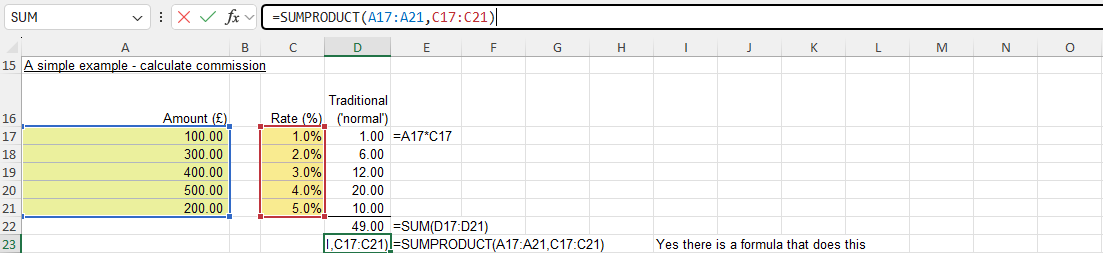
How Dynamic Arrays work
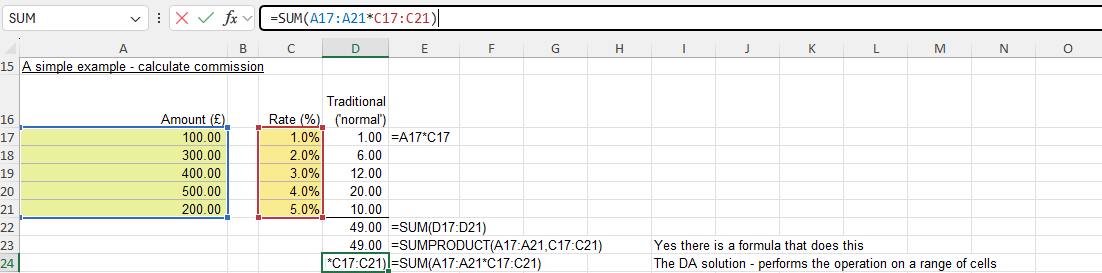
It may help to think of Dynamic Arrays as working on a whole range (an array) of cells all at the same time. So instead of pointing a calculation to its source cells, and then filling that calculation across or down, you direct the function to a range of cells.
See cell D24. What we’re doing is pointing the function to the range of cells that contains the amount, and multiplying that by the range of cells that contains the rates, and then adding all that up with Sum.
The hash tag '#'
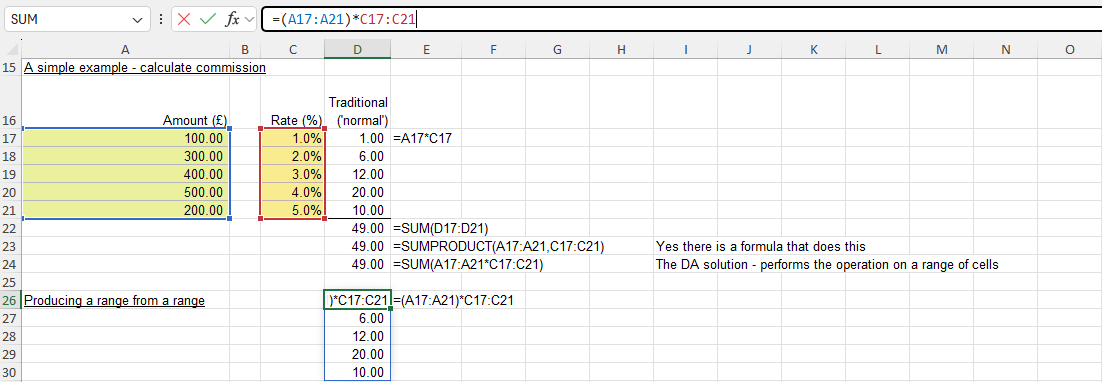
In D24 we’ve got a result that ‘chews’ on ranges of cells. And we’ve got a result that chews on ranges of cells at D26 too. D26 isn’t needed, because we get straight to an answer in D24. But D26 illustrates how Dynamic Arrays work. They work on a range of cells and they will happily output a range of cells. That’s what’s going on at D26: outputting a range of cells.
The #SPILL! error
The ability to output a range of cells feels pretty cool. If you recreated the workings, and inserted another row in the assumptions, the downstream results (from row 27 below) would automatically adapt.
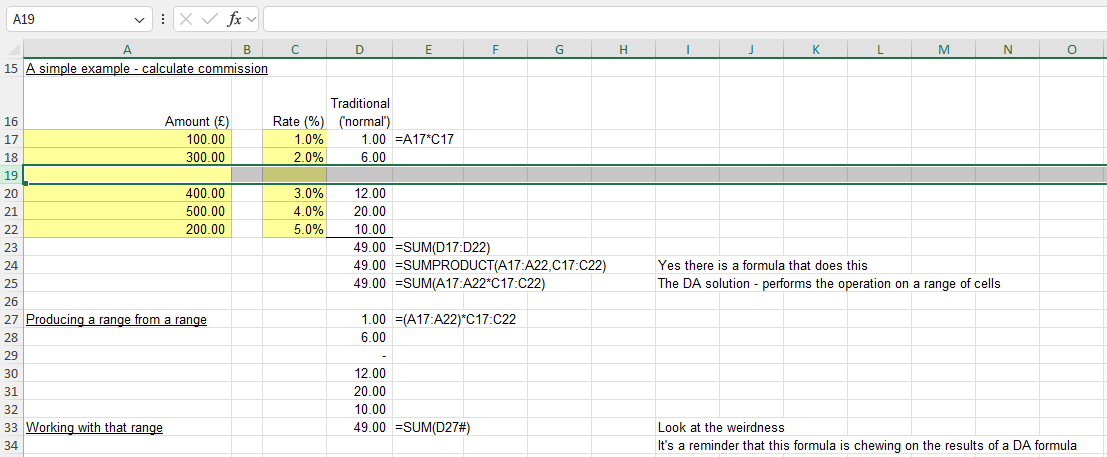
You can see D29 is getting ready to process the new inputs that are going to arrive in the new row 19.
It kind of seems promising. With Dynamic Arrays your downstream workings could automatically adjust themselves. We don’t have to go through the workings patching up all the formulas (“Ctrl D” from D27). But it might be best not to get sucked in to the idea of using Dynamic Arrays for absolutely all your build work.
Look at what happens when we keep going with our inserting. The workings have tried to adapt and have realised there’s an existing result there already (at D34 below). That’s what the #SPILL! error is doing. It’s saying “I don’t have room to do all this work you want me to do”.
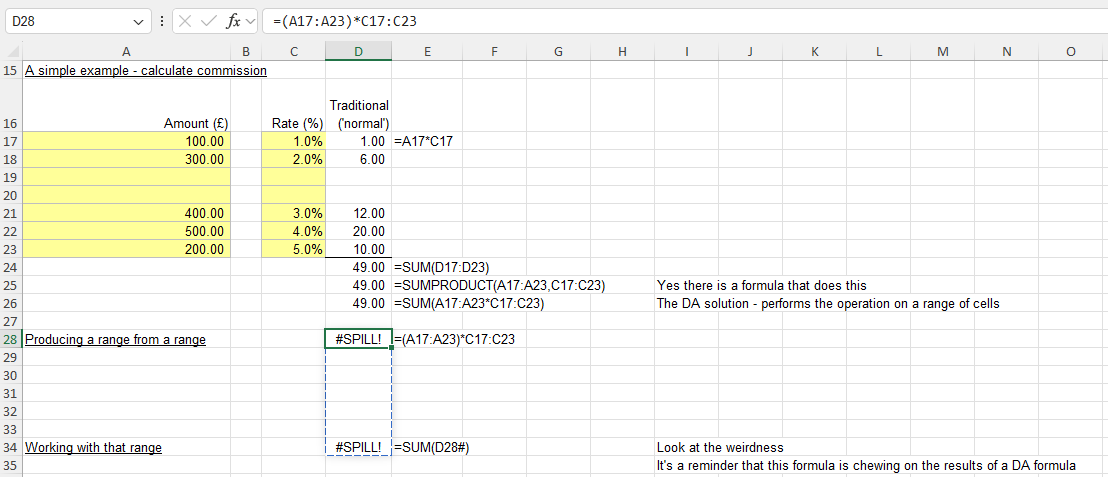
If you start doing more work with Dynamic Arrays, these #SPILL! errors will crop up regularly. They’re not much of a worry. You just need to create more room for the spilled formula to do its work in or about row 30 by inserting a bit of extra space. Then the #SPILL! error will go away.
But for this reason, and because of the way we tend to set things out in Excel (one thing under another in blocks) it’s a vote for not building absolutely everything you can out of Dynamic Arrays. Sure it’s neat the way the formula at D28 resizes itself, but keep going and all you’re going to have to do is fix #SPILL! errors. Instead (with the traditional approach) of having to insert and fill some calculations down, you’re going to have to spot and fix #SPILL! errors. All you’ve done is replace one challenge with a different one, for no meaningful gain and – in most people’s eyes – an increase in complexity.
Dynamic Arrays’ sales pitch
The superficial attraction is that Dynamic Arrays enable you to do more in one place (resizing themselves along the way), in theory reducing the potential for error. That’s if you don’t rate your own ability to fill across or down consistently.
It could all lead us into a niche Excel crusade that sees people building as much as possible using Dynamic Arrays. However:
- Most people have their brains wired up to the way we’ve always wired up Excel (this times that, then fill down or across)
- Dynamic Arrays seem cleverer but end up harder for average users to understand
- If you use a lot of Dynamic Arrays you’ll just end up fixing a lot of #SPILL! errors (instead of the traditional approach that sees you filling down and across – “Ctrl D” or “Ctrl R”.
The really great things about Dynamic Arrays
The really good thing about Excel’s Dynamic arrays is that they give us access to some special functions that are really handy when you’re trying to work with ranges of data. Towards the top of the list you could put:
- Unique – point it to e.g. a list of customers and it will remove all the duplicates for you
- Sort and Sortby – will help you sort your customers e.g. from biggest to smallest
- Filter – will help you find your 10 largest customers.
Solving those challenges (coming up with a master list, sorting, filtering live inside Excel) were much harder using ‘old school’ Excel functions. Now, provided you’re happy about the idea of Dynamic Arrays, you’ve suddenly got some really valuable extra Excel powers at your finger tips.
If you need to create a master list of customers and sort it, or categorise it, think about using Dynamic Arrays (and Unique, Sortby, Filter). Like the icing on your cake, at the apex of the pyramid of your work, a tiny thoughtful use of Dynamic Arrays can pay dividends.
Some things to remember about Dynamic Arrays
Here are some takeaways for Dynamic Arrays:
- They work on a range of cells
- If they’re working on a result that’s been produced by Dynamic Arrays you’ll see a hash tag # as a reminder of what’s going on
- They automatically re-size themselves. If you’re getting a #SPILL! error you’ll need to create some more room for them to do their work – that’s all
- They can centralise workings in one place, but risk confusing others who are newer to them.
So use just a little of them, for their special (Unique, Sortby, Filter) super powers when that’s what you absolutely really need.